How to Optimize WordPress Database for Faster Performance : Why optimizing the WordPress database is essential for performance
Your WordPress site’s performance is not determined only by caching plugins, themes, or CDN. A large percentage of load time comes from the database layer, because WordPress is a dynamic CMS: each page request triggers dozens of MySQL queries unless cached.
Over time, your database collects unnecessary data:
- Post revisions from every edit
- Auto‑drafts and trashed posts
- Spam comments and deleted comments
- Expired transients created by themes/plugins
- Orphaned metadata leftover from deleted plugins
- Unused custom tables
- Logs created by security or analytics plugins
This unnecessary data bloats table sizes, increases read/write times, slows search queries, and can even cause hosting resource overages. Optimizing the database:
Also Read


- Shrinks table size dramatically
- Reduces I/O load on the server
- Increases query execution speed
- Helps improve Core Web Vitals
- Makes backups faster and lighter
- Improves overall site stability and reliability
If your website loads slowly despite caching and CDN, database optimization is often the missing piece.
Before you start: Extended Safety Checklist
Before touching your database, always follow these extended safety precautions.
1. Create a complete site backup (Highly important)
Back up:
- The full WordPress root directory (wp‑content, themes, plugins, uploads)
- The database (SQL file)
Recommended tools:
- UpdraftPlus
- JetBackup (cPanel/DirectAdmin)
- BackupBuddy
- Your hosting provider’s daily/weekly backup tool
Screenshot placeholder: Insert screenshot: Backup panel or UpdraftPlus backup completed.
2. Export the database manually via phpMyAdmin
This gives you a clean .sql file you can restore instantly.
Steps:
- Log in to cPanel or hosting panel.
- Open phpMyAdmin.
- Select your WordPress database.
- Click Export → Quick → SQL → Download.
3. Use a staging site (Strongly recommended for busy sites)
A staging site lets you:
- Test cleanup and SQL queries
- Validate plugin behavior
- Ensure no tables are missing
- Prevent downtime
Large eCommerce sites using WooCommerce must always test on staging because orders, sessions, and carts rely heavily on database consistency.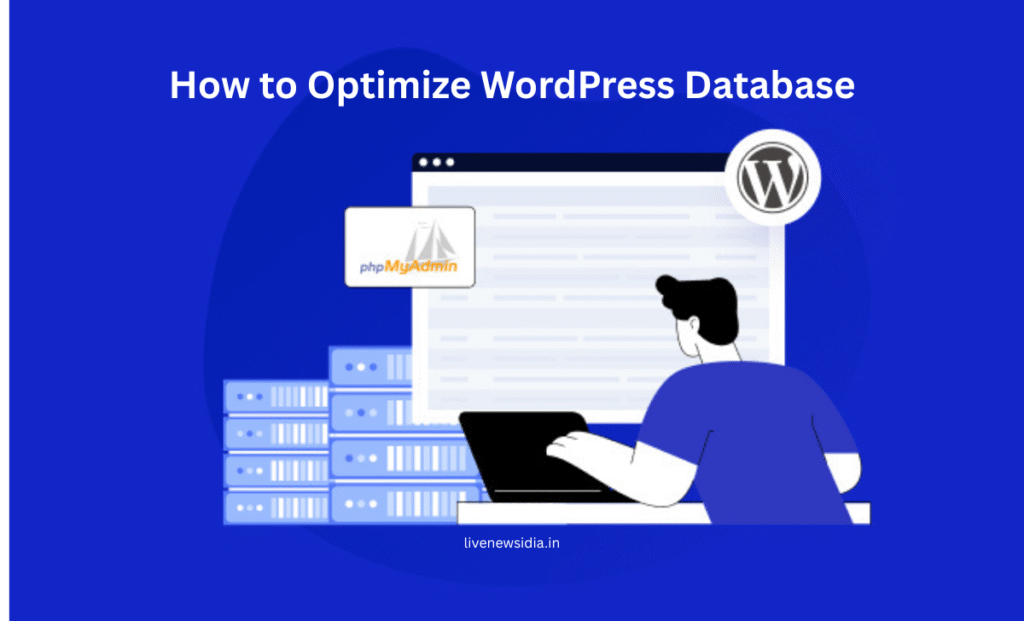
Step 1 — Full Database Audit (Identify what is consuming space)
To optimize correctly, you need clear visibility into your database.
Tasks include:
- Identifying large tables
- Checking table sizes
- Finding abnormal growth patterns (e.g., logs)
- Flagging plugin-specific tables
How to check table sizes in phpMyAdmin
- Open phpMyAdmin → Select your database.
- Sort the tables by Size.
- Identify large tables such as:
wp_postmeta(often the largest)wp_options(bloated by transients)wp_comments&wp_commentmeta- Plugin-created tables (WooCommerce, security plugins, SEO tools)
SQL Query to list table sizes
SELECT table_name AS `Table`,
       ROUND(((data_length + index_length) / 1024 / 1024), 2) AS `Size_MB`
FROM information_schema.TABLES
WHERE table_schema = DATABASE()
ORDER BY (data_length + index_length) DESC
LIMIT 20;
What to look for:
- Tables larger than 100MB — investigate why.
- WooCommerce session tables — clean safely.
- Option table with 100k+ rows — expired transients likely.
- Logs growing too fast — caused by security/analytics plugins.
Step 2 — Remove unnecessary data (Safe Cleanup)
Reducing table bloat is the easiest and fastest optimization.
a) Delete post revisions & drafts
WordPress saves dozens of revisions every time you edit content.
SQL cleanup:
DELETE FROM wp_posts WHERE post_type = 'revision';b) Remove trashed posts
DELETE FROM wp_posts WHERE post_status = 'trash';c) Delete spam and trashed comments
DELETE FROM wp_comments
WHERE comment_approved = 'spam' OR comment_approved = 'trash';
d) Delete expired transients
DELETE FROM wp_options
WHERE option_name LIKE ('%_transient_%')
AND option_name NOT LIKE ('%_transient_timeout_%');
e) Clean orphaned metadata
These appear when posts or comments have been deleted.
DELETE pm FROM wp_postmeta pm
LEFT JOIN wp_posts wp ON wp.ID = pm.post_id
WHERE wp.ID IS NULL;
f) Plugin-based cleanup (safer for non‑technical users)
Use:
- WP‑Optimize
- Advanced Database Cleaner
- WP‑Sweep
These provide visual options for safe cleanups.
Step 3 — Optimize and Repair Database Tables (Deep Guide)
What table optimization does:
- Defragments the table
- Rebuilds indexes
- Reduces overhead
- Shrinks storage size
How to optimize all tables in phpMyAdmin
- Select all tables.
- Choose Optimize Table from the dropdown.
SQL method:
OPTIMIZE TABLE wp_posts, wp_postmeta, wp_options, wp_comments, wp_commentmeta;For corrupted tables (MyISAM only)
REPAIR TABLE wp_posts;Example results you may see:
- 20–60% reduction in table size
- Reclaimed MB/GB of overhead
- Faster response time for queries
Step 4 — Clean Plugin and Theme Leftover Tables
Many plugins leave behind tables even after uninstalling.
How to identify orphaned tables:
- Table names with plugin prefixes
- Tables not used in your current setup
- Tables last updated years ago
Safe cleanup procedure:
- Rename table first (for rollback):
RENAME TABLE wp_old_plugin_table TO wp_old_plugin_table_backup; - Wait 1–2 weeks.
- If no errors → safely delete:
DROP TABLE IF EXISTS wp_old_plugin_table_backup;
Important Plugins That Often Leave Tables:
- WooCommerce
- Yoast
- Rank Math
- Elementor
- Security plugins (Wordfence, Sucuri)
- Analytics plugins
Step 5 — Index Optimization & Query Review
Indexes help MySQL locate rows faster.
How to audit slow queries:
Enable MySQL slow query logs via your hosting panel.
Example: Adding an index to speed up meta queries
ALTER TABLE wp_postmeta
ADD INDEX idx_meta_key (meta_key(191));
Use EXPLAIN to understand query behavior
EXPLAIN SELECT meta_value FROM wp_postmeta WHERE meta_key = 'price';Warning:
- Adding many indexes increases write load.
- Always test index changes on staging.
Step 6 — Enable Object Cache and Persistent Caching
Object caching reduces database queries dramatically.
Best options:
- Redis (most recommended)
- Memcached
How to enable Redis:
- Install Redis Object Cache plugin.
- Enable Redis in hosting panel.
- Connect plugin → Status should show Connected.
Screenshot placeholder: Insert screenshot: Redis connected.
Benefits of Redis:
- Reduces query load up to 80%
- Makes dynamic pages faster
- Helps WooCommerce & membership sites
Full-page caching tools:
- WP Rocket
- WP Super Cache
- LiteSpeed Cache (best for LiteSpeed servers)
Step 7 — Routine Maintenance Schedule
Weekly Tasks:
- Clear expired transients
- Remove spam comments
Monthly Tasks:
- Run table optimization
- Review plugin list & deactivate unused plugins
Quarterly Tasks:
- Audit slow queries
- Clean old media files
- Review DB size growth trends
Yearly Tasks:
- Full site audit
- Remove outdated plugin tables
- Archive old analytics/logs
Additional Tips for Large or High‑Traffic Sites
1. Move analytics to external tools
- Avoid storing logs in the database.
- Use Google Analytics, Matomo (external DB), or server-level logs.
2. Partition large tables
Helpful for:
- WooCommerce orders
- Large postmeta tables
3. Offload media to CDN or object storage
- S3, DigitalOcean Spaces, Cloudflare R2
4. Use a dedicated database server for enterprise sites
Example Rollback Workflow
If something goes wrong:
- Restore SQL backup from phpMyAdmin.
- Restore full backup from hosting.
- If only one table is affected, restore just that table.
FAQ,s
Q: Can database optimization break the site?
Yes, if done without backups. Always follow safety steps.