WordPress Elementor
In today’s digital world, creating a stunning website is essential for businesses, bloggers, and creators. But what if you could design a professional site without any coding knowledge? That’s where WordPress Elementor comes in. Elementor is one of the most popular page builders for WordPress, allowing users to design beautiful and responsive websites using a simple drag-and-drop interface. Whether you’re a beginner or a pro, Elementor makes website creation faster, easier, and more customizable.

What is WordPress Elementor?
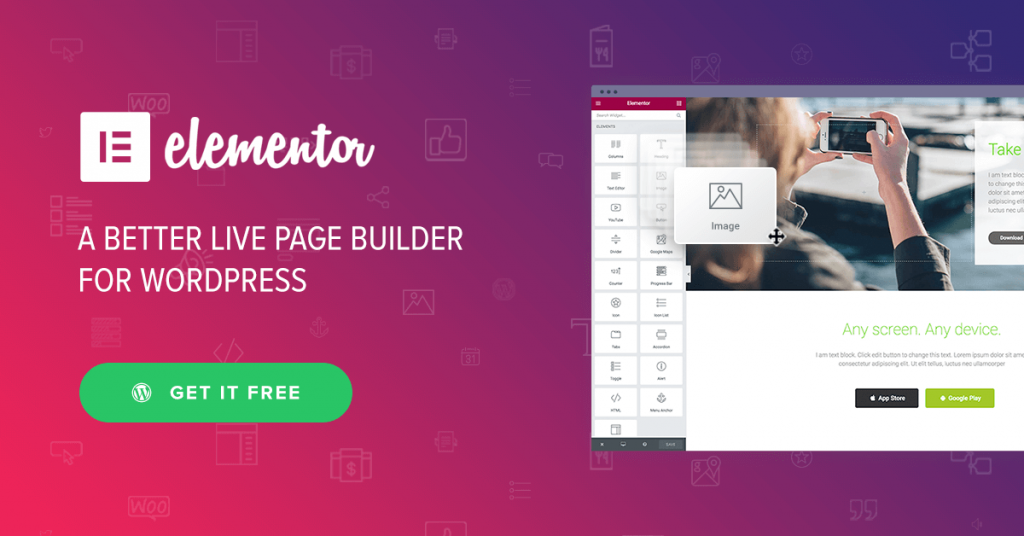
WordPress Elementor is a powerful page builder plugin that integrates directly with WordPress. It enables you to design pages visually, using real-time editing – so you can see exactly how your website will look as you build it. From headers and footers to entire layouts, Elementor gives you complete control over every part of your site.
Elementor works with almost all WordPress themes and plugins, making it a versatile tool for bloggers, business owners, and developers alike.
Also Read



Why Use Elementor for WordPress?
There are several reasons why Elementor is the go-to builder for millions of users:
- Drag-and-Drop Simplicity: No coding needed. Simply drag widgets (like text, images, buttons) onto your page.
- Pre-Made Templates: Choose from hundreds of ready-to-use templates and customize them.
- Responsive Design: Elementor automatically adjusts layouts for mobile, tablet, and desktop.
- Customization Freedom: Adjust fonts, colors, spacing, and animations exactly as you want.
- Integration: Works with WooCommerce, SEO plugins, and marketing tools.
With Elementor, you can design landing pages, blogs, portfolios, or eCommerce stores with ease.

How to Install Elementor in WordPress
Here’s a quick step-by-step guide to install Elementor Website Builder:
- Log in to your WordPress Dashboard.
- Navigate to Plugins → Add New.
- In the search bar, type “Elementor Website Builder.”
- Click Install Now → Activate.
Once activated, you’ll see the Elementor menu appear in your dashboard. You can now start designing pages instantly.
How to Use Elementor to Build a Page
Building a page with Elementor is simple:
- Go to Pages → Add New in your WordPress dashboard.
- Click Edit with Elementor.
- You’ll enter the Elementor Editor – a live visual builder.
- Add Sections, Columns, and Widgets (like headings, images, buttons, etc.).
- Customize the design: edit text, colors, and layout.
- When you’re happy with your design, click Publish.
You can also use Elementor’s Template Library to import pre-designed pages and tweak them to your needs.
Free vs. Pro Version
Elementor offers both free and paid versions. Here’s a quick comparison:
| Feature | Free Version | Elementor Pro |
|---|---|---|
| Basic Widgets | ✅ | ✅ |
| Advanced Widgets | ❌ | ✅ |
| Theme Builder | ❌ | ✅ |
| Popup Builder | ❌ | ✅ |
| WooCommerce Integration | ❌ | ✅ |
| Global Widgets | ❌ | ✅ |
If you’re building professional websites, the Pro version is worth the investment for its advanced tools and templates.
Top Features of Elementor
Some standout features include:
- Theme Builder: Customize headers, footers, and blog layouts.
- Popup Builder: Design email opt-ins and promotions.
- Motion Effects: Add animations and scroll effects easily.
- WooCommerce Widgets: Create custom product pages.
- Responsive Controls: Design for all screen sizes.
Best Elementor Templates and Add-ons
Enhance your Elementor experience with pre-built templates and add-ons. Popular ones include:
- Astra Starter Templates
- Envato Elements Templates
- Essential Addons for Elementor
- Happy Addons
These tools help you design faster and add extra functionality without coding.
Tips for Beginners
- Start with a lightweight theme like Astra or Hello Elementor.
- Use Global Colors and Fonts for a consistent look.
- Keep your design simple and clean.
- Regularly update plugins to avoid compatibility issues.
- Optimize images to maintain fast page loading.
Common Elementor Issues and Fixes
- Page Not Loading: Clear cache or switch to a default theme.
- Widgets Not Working: Deactivate conflicting plugins.
- Editor Keeps Loading: Increase PHP memory limit or check browser extensions.
Elementor has an active support community and documentation to help resolve issues quickly.
Conclusion
WordPress Elementor is the ultimate tool for anyone looking to design stunning websites easily. With its drag-and-drop interface, customizable templates, and flexibility, it’s no wonder millions of users trust Elementor for their WordPress sites. Whether you’re building a personal blog or a business website, Elementor helps you create professional results without writing a single line of code.
💡 Start today! Install Elementor on your WordPress site and experience the power of effortless website building.
FAQs About WordPress Elementor
1. What is WordPress Elementor used for?
Elementor is a drag-and-drop page builder plugin for WordPress that allows you to design beautiful, responsive websites without any coding knowledge.
2. Is Elementor free or paid?
Elementor offers both a free and a Pro version. The free version provides essential widgets and templates, while the Pro version adds advanced tools like Theme Builder, Popup Builder, and WooCommerce integration.
3. How do I install Elementor on WordPress?
You can install it directly from your WordPress dashboard by navigating to Plugins → Add New, searching for “Elementor Website Builder”, then clicking Install Now → Activate.
4. Can I use Elementor with any WordPress theme?
Yes, Elementor works with almost all WordPress themes, but it performs best with lightweight themes like Hello Elementor or Astra.
5. Does Elementor slow down a WordPress site?
When optimized properly (with compressed images and caching), Elementor doesn’t significantly affect site speed. Using a lightweight theme and keeping plugins minimal helps maintain performance.
6. What is the difference between Elementor and Elementor Pro?
The Pro version includes advanced features such as Theme Builder, Popup Builder, custom CSS, motion effects, and WooCommerce widgets — perfect for professional site designers.
7. Can beginners use Elementor easily?
Absolutely! Elementor is beginner-friendly with a visual editor, making it simple for anyone to create professional websites without technical knowledge.
8. How do I fix Elementor not loading or working?
Try clearing your cache, disabling conflicting plugins, or increasing your PHP memory limit. If issues persist, switch to a default theme and update Elementor to the latest version.
9. Does Elementor work with WooCommerce?
Yes, Elementor integrates seamlessly with WooCommerce, allowing you to design custom product pages, shop layouts, and checkout experiences.
10. Is Elementor good for SEO?
Yes. Elementor creates clean, responsive, and fast-loading pages that are SEO-friendly when paired with plugins like Rank Math or Yoast SEO.